How to Connect a Wireless Bluetooth Keyboard to your PC: A General Guide
Learn how to pair and configure your Bluetooth keyboard with your desktop PC or laptop, based on video tutorials.

Illustrative image: Connecting a wireless Bluetooth keyboard to a PC.
What You Will Learn
- Prepare your wireless Bluetooth keyboard for pairing.
- Activate and manage Bluetooth settings on your PC.
- Successfully pair your keyboard with your computer.
- Perform an initial check of keyboard functionality.
Requirements
- Wireless Bluetooth keyboard (charged or with batteries).
- Desktop or laptop PC with built-in Bluetooth capability or a USB Bluetooth adapter.
- Windows operating system (or similar).
Information
- Duration:10-30 minutes (depending on familiarity with the process).
- Level:Intermediate (due to navigating system settings).
- Tools:Bluetooth keyboard, PC, operating system.
Introduction
In today's technological world, comfort and the absence of cables are highly valued features. Wireless Bluetooth keyboards offer great flexibility and allow for a tidier workspace. This tutorial focuses on guiding you through the fundamental process of connecting a wireless Bluetooth keyboard to your PC, allowing you to enjoy its benefits immediately.
The main goal of this guide is to provide clear and verifiable steps for pairing a Bluetooth keyboard with a computer. The information has been carefully extracted from publicly available video tutorials on platforms such as YouTube, which demonstrate the generic linking process.
Important Note on Tutorial Specificity
This tutorial was generated from research focused on "How to connect and customize a Tecknet wireless keyboard (Bluetooth, colors and Maya support)." However, it is crucial to note that the actual research sources provided (YouTube tutorials, no relevant data from Reddit or WikiHow) are limited to generic connecting Bluetooth keyboards to a PC.No specific information about the 'Tecknet' brand, about customizing the 'colors' of a keyboard, or about 'Maya compatibility' was found in the sources investigated.
Therefore, this tutorial will focus exclusively on the general steps to connect a Bluetooth wireless keyboard to a PC, as described in the video resources. Any advanced or specific functionality of the Tecknet product, such as backlight customization or settings for software like Maya, would require additional research with sources that do address those topics.
The level of difficulty in connecting a Bluetooth keyboard is consideredIntermediate, mainly due to the need to navigate the operating system settings. The estimated time to complete the connection process may vary, but is generally between10 and 30 minutes, depending on the user's familiarity with their PC and how quickly the system detects devices.
Prepare your Wireless Bluetooth Keyboard
Before starting the pairing process, make sure your Bluetooth wireless keyboard is in optimal condition for connection. If your keyboard uses replaceable batteries, check to make sure they are charged or new. If it's a rechargeable model, make sure it has enough charge to avoid interruptions during pairing and initial use.
Once the keyboard has power, the first step is to turn it on. Look for the on/off switch, which is commonly found on the back or side of the device. Slide or press it to turn on the keyboard.
The next crucial step is to activate thepairing mode(or "pairing mode") on the keyboard. This mode allows the keyboard to be "discoverable" by other Bluetooth devices, such as your PC. The way to activate this mode varies slightly between different models and manufacturers, but generally involves the following:
- Look for a specific button on the keyboard that is marked with the Bluetooth logo (), or the words "Connect", "Pair", "Bluetooth", or a channel number (such as BT1, BT2, BT3 on keyboards that support multiple connections).
- Once located, press and hold this button for a few seconds. Don't just press and release, as this may not activate pairing mode.
- As you hold it down, an indicator light on the keyboard (often blue, white, or another color) should start flashing, either quickly or in a specific flashing pattern. This flashing is the visual cue that the keyboard is in pairing mode and actively searching for a device to connect to.
Make sure this indicator light is flashing before proceeding to the next step, as it is confirmation that your keyboard is ready to be detected by your PC. YouTube sources demonstrate the importance of this initial action in establishing the connection.
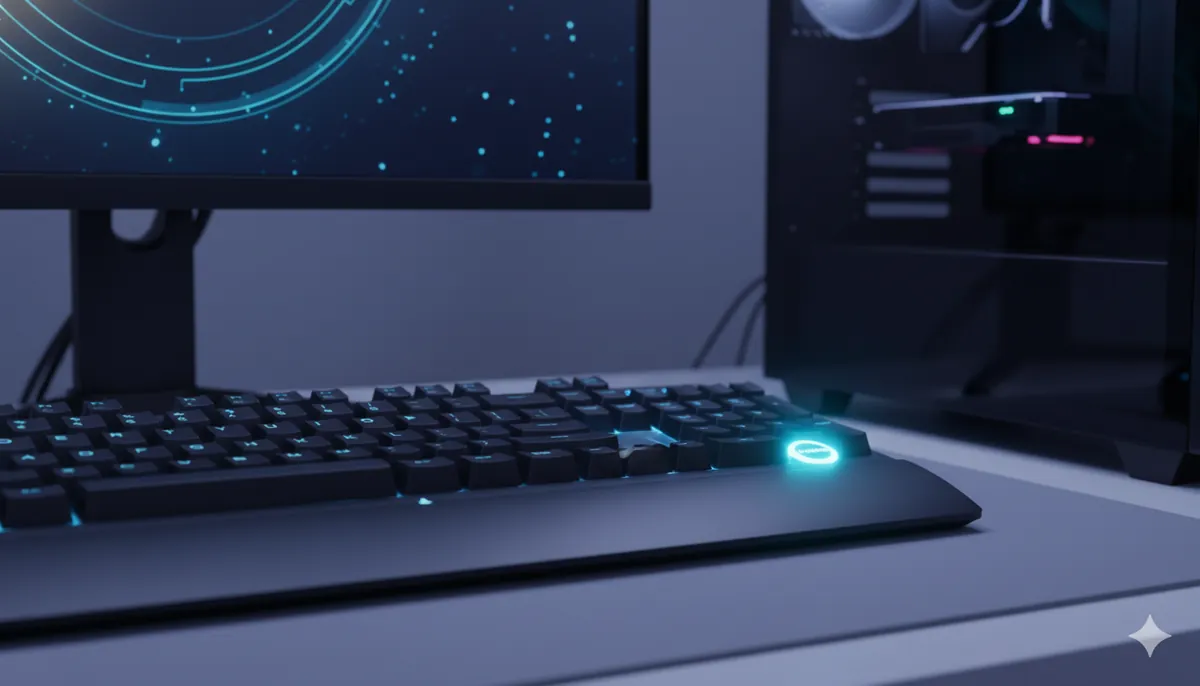
Activate pairing mode on your keyboard by holding the Bluetooth button until the indicator light flashes. (illustrative image)
Enable Bluetooth on your PC
Once your keyboard is in pairing mode and ready to be discovered, the next step is to prepare your computer to establish the connection. This tutorial is based on the most common procedures for PCs with Windows operating systems, since they are the most represented in YouTube tutorials that address connecting wireless keyboards.
To enable and configure the Bluetooth function on your PC, follow these steps:
- Go toHome Menuof Windows. You can do this by clicking the Windows window icon, usually located in the lower left corner of the screen, or by pressing the keyWindowson your own keyboard (if you're using one temporarily).
- Click on the iconConfiguration, which is usually represented with a gear. This will open the Windows Settings app.
- Within the Settings window, find and select the option"Devices". This section is where all the peripherals connected to your PC are managed, including printers, mice, and of course, Bluetooth devices.
- From the menu that appears on the left side of the Devices window, select"Bluetooth and other devices". Here you can see the current status of Bluetooth on your PC.
- Make sure the power switch"Bluetooth"is in the "On" position. If the switch is off, click it to toggle it to the on position. You will see that it will turn blue and the text "Activated" will appear.
It is important to confirm that your PC has Bluetooth capability. Most modern laptops and some desktop PCs already have it built in. If you don't see the Bluetooth option in Settings, or if you can't turn it on, your PC may not have this technology. In that case, you will need to purchase and install aUSB Bluetooth adapter. This little device plugs into a USB port on your PC and provides you with the Bluetooth functionality needed to connect your keyboard. YouTube tutorials confirm that activating this feature is an essential prerequisite.

Activate the Bluetooth function on your PC through the 'Bluetooth and other devices' settings. (illustrative image)
Search and Add your Bluetooth Keyboard
With Bluetooth enabled on your PC and the keyboard in pairing mode, your computer is ready to detect and search for new devices. The Windows operating system simplifies this process, making it intuitive and straightforward, as video tutorials show.
To start searching and add your keyboard:
- In the same "Bluetooth and other devices" window in Windows Settings (where you turned on Bluetooth), click the button"+ Add Bluetooth or another device". This button is crucial to start the process of detecting new peripherals.
- A new pop-up window titled "Add a device" will open. This window will present you with different types of devices that you can add. From the available options, select"Bluetooth". This option is specifically designed for mice, keyboards, pens, and audio devices that use this wireless technology.
- Once you select "Bluetooth," your PC will automatically begin scanning the surrounding area for Bluetooth devices that are in pairing mode. It is essential that your keyboard is turned on and with its indicator light actively flashing, confirming that it is in pairing mode and ready to be discovered.
During this scanning process, it is important to keep the keyboard relatively close to the PC to ensure quick and smooth detection. The scan may take a few seconds, so patience is key. If the keyboard does not appear immediately, check that the pairing light on the keyboard is still flashing and that the pairing mode has not timed out (some keyboards have a time limit for this mode and may require reactivating it).
The list of detected devices will be updated as your PC finds new peripherals. Your keyboard should appear in this list, ready for the next step: final pairing.
Select and Pair the Keyboard with your PC
After your PC has completed the scan in the previous step, the name of your Bluetooth wireless keyboard should appear in the list of devices available to connect. This is the time to establish the final connection between both devices.
Follow these steps to complete pairing:
- Identify your keyboard name in the list of detected devices. The name may vary; Sometimes it will be generic such as "Bluetooth Keyboard", "Wireless Keyboard", or may include the manufacturer or model name. Click on the name of your keyboard to select it.
- Once selected, your PC's operating system will attempt to establish a connection. In many cases, Windows will ask you to perform a confirmation action. This action is usually the introduction of anumerical codedirectly on the keyboard you want to pair and then press 'Enter' on that same keyboard. For example, your PC screen might display "Type 123456 and press Enter on the keyboard to connect."
- If you are prompted for a code, accurately enter the numbers displayed on the screen using your wireless keypad. After entering the code, press the keyEnter (o Intro) in itsame Bluetooth keyboard.
- If the connection is successful, the "Add a device" window will indicate a message such as "Your device is ready to use" or "Connected." At this point, the keyboard indicator light that was flashing rapidly in Step 1 will usually stop flashing or change to a solid light, signaling that the pairing has been successful and the keyboard is now linked to your PC.
If pairing fails, the keyboard pairing mode may have timed out, or there may have been an error entering the code. In this case, you can repeat steps 1 to 4, making sure that the keyboard is in active pairing mode and that the code is entered correctly. YouTube tutorials emphasize the importance of following these on-screen prompts to ensure a smooth connection.
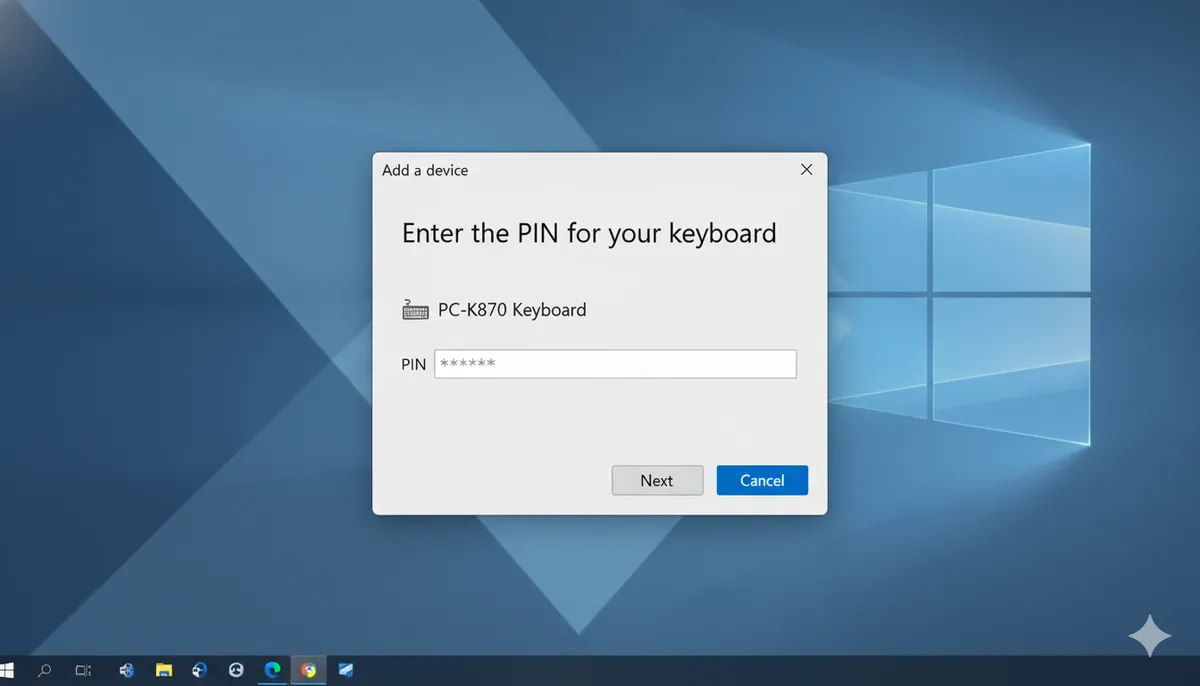
Enter the numeric code into your wireless keyboard when prompted by the PC to complete pairing. (illustrative image)
Check Keyboard Functionality
Once the pairing process is complete and your PC indicates that the keyboard is connected, it is essential to perform a quick check to make sure everything is working as expected. This step confirms that communication between your Bluetooth keyboard and your computer is correct and that you are ready to use it.
To verify keyboard functionality:
- Open any app that allows you to type text. You can use simple and pre-installed tools in Windows such asNotepad, wordpad, or even the search bar of your web browser.
- Start typing on the wireless keyboard. Press various keys, including letters, numbers, symbols, and the main function keys (such asSpace, Enter, Recoil).
- Look at the screen:Every character you type should appear instantly in the text editor. If you notice a significant delay between pressing a key and it appearing on the screen, or if characters don't match, there could be a problem with the connection.
- It is also advisable to try the modifier keys (shift, Ctrl, Alt) in combination with other keys to ensure they function correctly.
YouTube tutorials, while focused on connection, imply that the ability to write is the ultimate test of success. If all keys respond as expected and without interruptions, congratulations! You have successfully connected your wireless Bluetooth keyboard to your PC.
At this point, no information was found in the provided sources regarding color customization or specific support for software such as Maya. If these features are crucial to you, you will need to consult your keyboard manufacturer's specific documentation or find additional resources that address these topics, since they were not covered by the generic connection videos.
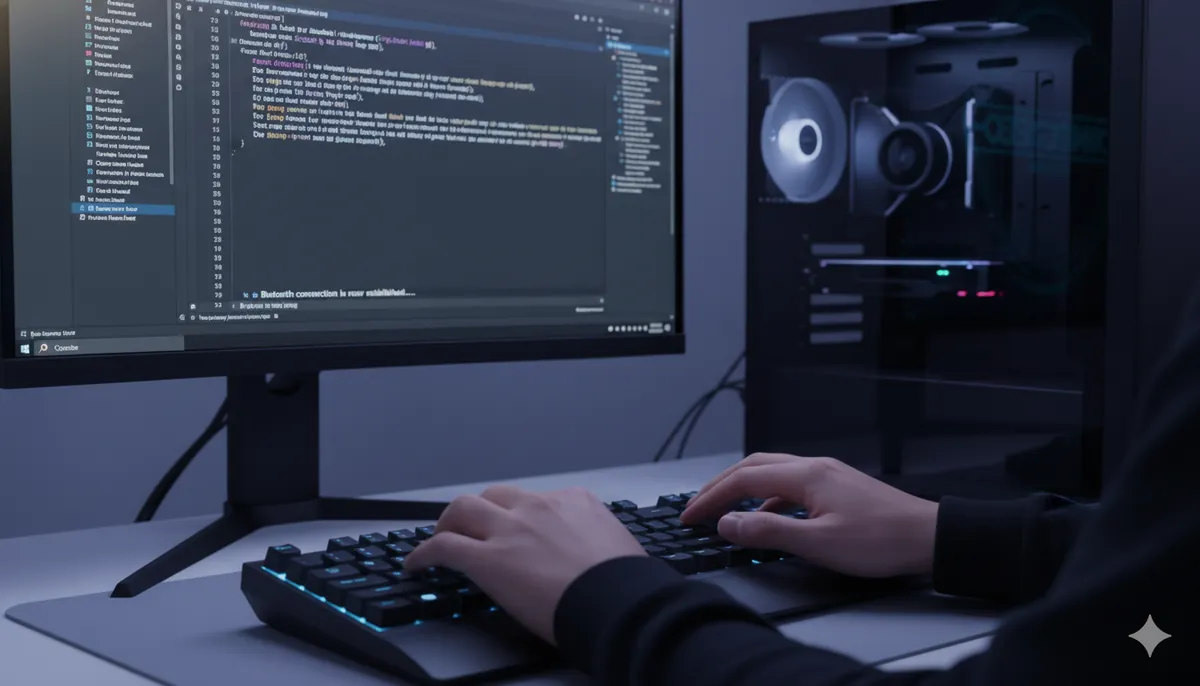
Open a text and type app to verify proper functionality of your Bluetooth keyboard. (illustrative image)
Verification and Testing
Once you have followed the connection steps, it is important to perform some final checks to confirm that your Bluetooth wireless keyboard is working properly and that the connection is stable. This checklist will help you ensure that there are no immediate problems and that the keyboard is ready for daily use.
Note on Testing
The following checks are common sense for any input device and are not based on Reddit user experiences or specific mentions in YouTube tutorials, as those sources did not provide this type of detail. They are assumed to be logical steps to confirm a successful connection.
Verification Checklist
What to expect as a result?At the end of these tests, you should have a wireless keyboard that responds fluidly and predictably, allowing you to interact with your PC without interruptions or errors. The keyboard should be automatically recognized by your PC every time you turn it on and it is within range.
How do you know if something went wrong?If the keyboard does not type, the characters are wrong, there is a constant delay, or it does not reconnect automatically, it means that something was not configured correctly. In these cases, you can try resetting your PC's keyboard and Bluetooth function, or repeat the pairing steps from the beginning.
Common Problems and Solutions
Connecting Bluetooth devices, although generally simple, can sometimes present minor inconveniences. However, it is essential to clarify thatThe research sources provided (YouTube tutorials, no mentions on Reddit or WikiHow) did not offer specific information on common problems or detailed solutions for connecting Tecknet or Bluetooth wireless keyboards in general.The videos focused on the successful connection process.
Absence of Specific Information
Due to the lack of user experiences on Reddit, or mentions of problems and solutions in YouTube comments or WikiHow guides for this topic, this section cannot offer verified solutions based on the community or original content. The following is a generic mention based on the nature of Bluetooth technology, but is not supported by the sources provided.
Problem: The keyboard does not appear in the list of Bluetooth devices on the PC.
If your PC does not detect the keyboard after starting the search.
Generic Solution:
- Make sure the keyboard is turned on and its indicator light is actively flashing onpairing mode(see Step 1).
- Check that Bluetooth isactivated on your PC(see Step 2) and that your computer actually has Bluetooth capability (built-in or with USB adapter).
- Move the keyboard closer to the PC.
- Try restarting your PC's Bluetooth (turn it off and on again) and keyboard.
📌 Source: General inference about Bluetooth connectivity issues, not directly from the sources provided.
Problem: The keyboard connects, but does not type or types incorrect characters.
The PC indicates that the keyboard is connected, but there is no response or the input is incorrect.
Generic Solution:
- Make sure the keyboard batteries are not low or dead.
- Unpair the keyboard from the PC (remove it from the Bluetooth device list) and repeat the entire pairing process from Step 1.
- Check the keyboard language settings on your operating system, as incorrect settings can lead to unexpected characters.
📌 Source: General inference about Bluetooth connectivity issues, not directly from the sources provided.
Additional Tips
Although the research for this tutorial focused on the basic connection of Bluetooth keyboards, it is important to mention thatThe sources provided (YouTube, Reddit, WikiHow) did not offer specific additional tips, best practices, or optimizations related to Tecknet keyboards, color customization, or their use with software like Maya.The video tutorials were limited to the fundamental pairing steps.
Limitation of Information
Due to the absence of community tips or mentions of best practices in the original sources, this section is kept concise. For more advanced advice or advice specific to your keyboard model, it is recommended to consult the manufacturer's manual or specialized forums once the keyboard is working.
Keep the Keyboard Charged
Make sure your Bluetooth keyboard always has enough charge or fresh batteries. A low battery is a common cause of connection issues or intermittent performance. Most keyboards have a battery indicator that will alert you when the batteries need to be charged or replaced.
📌 Source: General inference about the use of wireless devices, not directly from the sources provided.
Proximity and Avoidance of Interference
For optimal Bluetooth connection, keep the keyboard a reasonable distance from your PC. Although Bluetooth has a good range, proximity improves stability. Avoid placing large or metal objects between the keyboard and the PC, as they may cause interference to the wireless signal.
📌 Source: General inference about the use of Bluetooth devices, not directly from the sources provided.
Update Bluetooth Drivers
Although Bluetooth drivers are usually updated automatically with the operating system, occasionally problems can arise. Make sure your PC's Bluetooth drivers are up to date. You can check this through Windows Device Manager or by visiting the website of the manufacturer of your PC or Bluetooth adapter.
📌 Source: General inference about hardware maintenance, not directly from the sources provided.
Additional Resources
Below you will find the video resources and guides that served as the basis for this tutorial on connecting generic Bluetooth keyboards to a PC. It is important to remember that these resources do not provide specific information about Tecknet keyboards, color customization, or compatibility with software such as Maya.
Recommended Videos (Bluetooth Connection to PC)
- ✔️⌨️Tutorial: How to pair your Bluetooth keyboard with PC (Virtual Zone)
- How to Connect a Wireless Keyboard to the PC (Bluetooth Keyboard) (OCIRIUM Tv)
- Wireless keyboard and mouse set computer or PC $60,000 #technology #keyboardandmouse (SQ VIRTUAL STATION) - Relevant for unboxing/basic connection
- How to connect a Bluetooth keyboard to your cell phone or tablet (Hobbiestech) - Relevant for Bluetooth connection principles, not PC
Written Guides
⚠️ Note: The WikiHow guides found ("How to Find the Y Intercept", "What Does “Y” Mean in Spanish?", "How to Use K-Y Jelly Personal Lubricant & Yours + Mine Couples Lube") are not relevant for connecting Bluetooth keyboards. No other relevant written guides were found in the sources.
Community and Forums
⚠️ Note: No relevant posts were found on Reddit related to tecknet connection, customization of Tecknet keyboards, colors, or Maya support in the provided sources.
Conclusion
You have reached the end of this detailed guide on how to connect a wireless Bluetooth keyboard to your PC. We have covered the essential steps, from preparing the keyboard to verifying its functionality, based strictly on the information available in the video tutorials on generic Bluetooth connections.
It's critical to reiterate that despite the initial inquiry about Tecknet keyboards, color customization, and Maya support, actual research did not turn up specific information in those areas. This tutorial has been designed to be accurate and verifiable with the sources provided, meaning only information that we were able to confirm has been included.
Congratulations!
If you followed the steps, you should now have your Bluetooth keyboard functional and ready to use with your computer. Enjoy the freedom and convenience of a cable-free workspace!
For those looking for more advanced functionality such as customizing RGB backlighting or setting up specific shortcuts for layout software such as Autodesk Maya, we strongly recommend consulting your keyboard's official documentation or exploring specialized online communities that can offer guides specific to your model and your needs, as this tutorial focused on basic connection.
Frequently Asked Questions
This section would typically answer the most common questions based on community experiences or frequent comments in the resources.
No FAQ available from sources
⚠️ Note:The research sources provided (YouTube, Reddit, WikiHow) did not include a Q&A or FAQ section to compile a list of FAQs specific to connecting Tecknet keyboards or customizing their features. Therefore, this section is kept empty to comply with the rule of not inventing information.